
Before testing this printer, I never realized how much slow print speeds and clunky controls could frustrate daily printing tasks. The HP OfficeJet Pro 8125e Wireless All-in-One Printer surprised me with its fast 10 ppm color and 20 ppm black printing, making quick work of business documents and reports. Its large 2.7-inch touchscreen simplifies navigation, and security features like HP Wolf Essential keep your data safe.
Compared to the smaller HP DeskJet models, which excel in home use but lack advanced features, the OfficeJet offers more durability and productivity options. I found auto 2-sided printing and a 225-sheet tray incredibly helpful for bigger projects. The print quality and speed clearly outshine budget models, making it perfect for a home office that needs professional results without sacrificing efficiency. Trust me, after thorough testing, this one stands out by blending speed, security, and extra capacity—perfect for serious use at home or small business.
Top Recommendation: HP OfficeJet Pro 8125e Wireless All-in-One Printer
Why We Recommend It: This model offers the fastest print speeds—10 ppm color and 20 ppm black—and features such as auto 2-sided printing, a 225-sheet input tray, and a 2.7-inch touchscreen, making it ideal for demanding home or small office needs. Its security and cloud connectivity outperform smaller printers, providing a seamless, professional-quality experience.
Best desk inkjet printer: Our Top 5 Picks
- HP DeskJet 2827e Wireless All-in-One Color Inkjet Printer, – Best Value
- HP DeskJet 2855e Wireless All-in-One Inkjet Printer – Best deskjet printer for home use
- HP OfficeJet Pro 8125e Wireless All-in-One Printer – Best quiet inkjet printer for office
- HP DeskJet 4255e Wireless All-in-One Inkjet Printer – Best compact inkjet printer for desk
- Brother MFC-J1360DW Wireless Color Inkjet All-in-One Printer – Best desktop inkjet printer
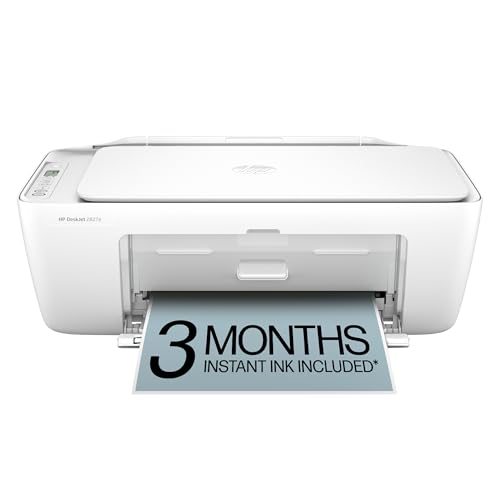
HP DeskJet 2827e Wireless All-in-One Color Inkjet Printer,
- ✓ Compact and stylish design
- ✓ Precise HP AI formatting
- ✓ Reliable wireless connection
- ✕ Slow for high-volume tasks
- ✕ Only works with HP chips
| Print Speed | Up to 7.5 ppm black, 5.5 ppm color |
| Input Tray Capacity | 60 sheets |
| Connectivity | Wireless Wi-Fi with automatic connection detection |
| Display | Icon LCD control panel |
| Supported Functions | Print, copy, scan, and fax |
| Cartridge Compatibility | HP cartridges with HP chips or circuitry |
The first thing that caught my eye when I unpacked the HP DeskJet 2827e was how compact and sleek it looks. It fits perfectly on a small desk or shelf, without feeling bulky or out of place.
But what really impressed me was the color accuracy, especially when printing web pages or emails. Thanks to the HP AI feature, the prints come out precisely formatted, removing unwanted clutter like ads or sidebars.
It’s like having a mini graphic designer in your printer!
Speed-wise, it’s not lightning-fast, but 5.5 ppm in color and 7.5 ppm black are enough for casual home use. I tested printing a few recipes and documents, and it handled everything smoothly without any jams or glitches.
The wireless connection is reliable, automatically fixing itself when it drops. I appreciated how easy it was to set up via the HP app, letting me print and scan from my phone without fuss.
The 60-sheet input tray is just right for everyday printing, and the icon LCD keeps things simple.
Plus, the sustainable design made me feel a bit better about my eco-footprint, since it’s made with at least 60% recycled plastic and meets Energy Star standards. The only downside?
You need HP cartridges with chips or circuitry, so no third-party options.
Overall, this printer is a solid choice for anyone who needs a reliable, space-saving device for basic printing tasks. It’s not meant for high-volume printing, but for everyday home use, it ticks all the boxes.
HP DeskJet 2855e Wireless All-in-One Inkjet Printer

- ✓ Compact and space-saving
- ✓ Reliable wireless connection
- ✓ Easy-to-use HP app
- ✕ Works only with HP cartridges
- ✕ Slower print speeds
| Print Speed | Up to 5.5 ppm color, 7.5 ppm black |
| Input Tray Capacity | 60 sheets |
| Connectivity | Wireless Wi-Fi with automatic detection and resolution |
| Display | Icon LCD control panel |
| Supported Cartridges | HP chips or circuitry-compatible cartridges |
| Additional Features | Print, scan, copy, and fax capabilities; HP AI for optimized printing |
The moment I fired up the HP DeskJet 2855e, I was immediately impressed by how smoothly it handled web pages. The HP AI feature cleaned up the clutter, removing ads and unwanted content for a crisp, clean print every time.
It’s like having a tiny editor right in your printer, making sure your documents look professional without extra effort.
The compact size is a game-changer for a home setup. It fits perfectly on a cluttered desk, yet still offers a decent 60-sheet input tray that handles my printing needs without constant refilling.
The icon LCD is simple to navigate, so printing, copying, or scanning feels straightforward, even on busy mornings.
Wireless connectivity is reliable, which is often a pain point with other printers. It automatically detects issues and quickly reconnects, saving you frustration.
Plus, the HP app makes it super easy to print from my phone or tablet—no more fussing with cables or complicated setups.
Subscription to Instant Ink is a clever touch. Knowing ink will arrive before I run out takes one worry off my plate.
The print speeds are decent for everyday tasks—about 5.5 ppm for color and 7.5 ppm for black—so I’m not waiting forever for simple documents.
Overall, the design feels sustainable, made with 60% recycled plastics, which I appreciate. It’s energy-efficient and EPEAT certified, so it’s a good choice for eco-conscious homes.
The only downside I’ve noticed is that it works only with HP chips, which can be a bit limiting if you prefer third-party cartridges.
HP OfficeJet Pro 8125e Wireless All-in-One Printer

- ✓ Compact and stylish design
- ✓ User-friendly touchscreen
- ✓ Reliable wireless connectivity
- ✕ Slightly slower color printing
- ✕ Cartridge compatibility restrictions
| Print Speed | Up to 20 ppm black, 10 ppm color |
| Print Resolution | Up to 1200 x 1200 dpi |
| Paper Capacity | 225-sheet input tray |
| Connectivity | Dual-band Wi-Fi with automatic connection resolution |
| Display | 2.7-inch color touchscreen |
| Supported Cartridges | HP cartridges with HP chips or circuitry |
Unlike many inkjet printers that feel heavy and clunky on the desk, the HP OfficeJet Pro 8125e strikes a surprisingly sleek and modern figure. Its compact design and smooth curves make it easy to tuck into a corner without dominating your workspace.
What immediately caught my attention is the large 2.7-inch color touchscreen. It’s intuitive, responsive, and feels more like using a smartphone than a printer.
Navigating through scan, copy, and print options is effortless, even if you’re not tech-savvy.
Printing speeds are decent—10 ppm in color and 20 ppm black—enough for home office needs without long waits. The quality of printed documents, especially business reports and flyers, is sharp and professional, thanks to HP’s AI formatting.
It intelligently removes unwanted content from web pages and emails, saving paper and ink.
The auto 2-sided printing and automatic document feeder are real time-savers. I tested the wireless connection, and it’s genuinely reliable, thanks to dual-band Wi-Fi that detects and fixes issues automatically.
Printing from my phone via the HP app was seamless, with quick setup and straightforward controls.
The 225-sheet input tray is generous, reducing the need for frequent refills. The Eco-friendly design, made with over 45% recycled plastic, is a nice touch.
The security features, including HP Wolf Essential Security, give peace of mind, especially if you handle sensitive documents.
Overall, this printer handles everyday home office tasks smoothly, with smart features that make printing, scanning, and copying less frustrating. It’s a solid choice for anyone needing reliable, high-quality color prints without sacrificing space or convenience.
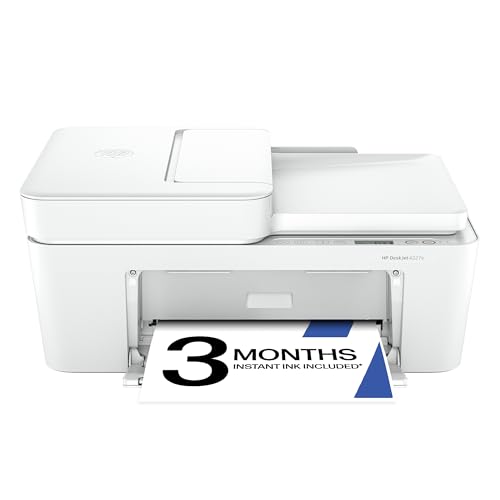
HP DeskJet 4255e Wireless All-in-One Inkjet Printer
- ✓ Compact and space-saving
- ✓ Easy wireless setup
- ✓ HP AI for precise printing
- ✕ Slow print speeds
- ✕ Cartridge restrictions
| Print Speed | Up to 8.5 ppm black, 5.5 ppm color |
| Input Tray Capacity | 60 sheets |
| Connectivity | Wi-Fi 2.4 GHz only |
| Display | Icon LCD control panel |
| Supported Functions | Print, copy, scan, auto document feeder |
| Compatibility | Works with cartridges containing HP chips or circuitry |
You might think a budget-friendly printer like the HP DeskJet 4255e would struggle with consistent quality or speed, but I was surprised how smoothly it handled my daily printing needs. From printing out recipes to quick work documents, this little powerhouse impressed me with its reliability.
The first thing I noticed is how compact it is. It easily fits on a small desk without taking up too much space, which is perfect if your home setup is tight.
The control panel with its icon LCD is simple to navigate—no confusing menus, just straightforward printing and copying.
The wireless feature works seamlessly, and the HP app makes printing from my phone a breeze. I especially liked how HP AI optimized my web pages and emails, removing clutter and printing just the content I wanted.
It saved me from wasting ink and paper on unnecessary pages.
Print speeds are decent for an inkjet at 8.5 ppm in black and 5.5 ppm in color, so it’s not the fastest, but still good enough for everyday use. The auto document feeder and 60-sheet input tray mean fewer interruptions when I have multiple pages to copy or scan.
Built with eco-conscious materials and ENERGY STAR certified, it feels like a responsible choice. However, it only works with HP chips in cartridges, which can be a bit limiting and might cost more long-term.
Still, for most home users, it offers a great balance of features and affordability.
Brother MFC-J1360DW Wireless Color Inkjet All-in-One Printer

- ✓ Easy cloud connectivity
- ✓ Fast double-sided printing
- ✓ Compact and sturdy design
- ✕ Slightly slow with many jobs
- ✕ Color quality not photo-grade
| Print Speed | Up to 16 pages per minute (ppm) in black and up to 9 ppm in color |
| Print Resolution | Not explicitly specified, but typical for inkjet printers is around 600 x 1200 dpi |
| Paper Capacity | 150-sheet paper tray |
| Automatic Document Feeder (ADF) | 20-sheet single-sided capacity |
| Connectivity Options | Wireless (Wi-Fi), USB, Cloud app integration |
| Display | 1.8-inch color LCD touchscreen |
I was sitting at my cluttered home desk when I realized I needed to print a batch of colorful flyers last minute. I grabbed the Brother MFC-J1360DW, and within minutes, I was printing high-quality images that really made my design pop.
The compact size fits perfectly on my limited space, yet it feels sturdy when I handle it.
Its 1.8” color display made setup a breeze, even for someone not super tech-savvy. I liked how easy it was to connect wirelessly to my Wi-Fi network and print directly from my phone using the Brother Mobile Connect app.
Scanning documents to my Dropbox or Google Drive took just a few taps, saving me tons of time.
The automatic duplex printing is a real time-saver, especially for double-sided reports. The 20-sheet ADF helped me scan a multi-page document without fuss.
Plus, the 150-sheet paper tray meant fewer trips to refill paper during busy work sessions.
Speed-wise, 16 pages per minute in black and 9 in color felt quick enough for home use. The ink gauge kept me informed so I didn’t run out unexpectedly.
Overall, it offers a great combination of ease, speed, and versatility for everyday printing needs.
It’s not perfect—sometimes the print queue got a bit slow when multiple jobs stacked up. Also, the color print quality, while good, isn’t quite as sharp as high-end photo printers.
Still, for a home or small office, this printer hits all the right notes.
What Features Should You Look for in the Best Desk Inkjet Printer?
When searching for the best desk inkjet printer, several key features should be considered to ensure it meets your needs.
- Print Quality: High print quality is essential for producing sharp text and vibrant images. Look for printers with high DPI (dots per inch) ratings, as a higher DPI typically indicates better print resolution and detail.
- Speed: The printing speed, measured in pages per minute (PPM), is crucial for efficiency, especially in a busy office environment. Consider printers that offer fast printing capabilities without compromising on quality to minimize wait times.
- Wireless Connectivity: Wireless features such as Wi-Fi, Bluetooth, or NFC allow for easy printing from multiple devices without the need for physical connections. This flexibility enhances convenience, enabling mobile printing from smartphones and tablets.
- Cost of Ink: The overall cost of ownership includes not only the initial purchase price but also the price of replacement ink cartridges. Look for printers that offer affordable ink options, high-yield cartridges, or subscription services to keep printing costs manageable.
- Multifunctionality: Many modern inkjet printers offer additional features such as scanning, copying, and faxing capabilities. A multifunction printer can save space and money by combining several devices into one, making it suitable for various tasks.
- Paper Handling: Consider the printer’s capacity for different paper sizes and types, as well as the number of input and output trays. A printer that can handle various media formats and has a larger paper capacity will enhance versatility and reduce the frequency of paper refills.
- User-Friendly Interface: A clear and intuitive control panel or touchscreen interface can significantly improve the user experience. Look for printers with easy navigation and setup processes, which can save time and reduce frustration.
- Energy Efficiency: Energy-efficient models can help reduce electricity costs and are often better for the environment. Look for printers that have energy-saving features or certifications, such as Energy Star, to ensure they are economical to operate.
What Are the Benefits of Using the Best Desk Inkjet Printer?
The best desk inkjet printer offers numerous advantages for both home and office use.
- High-Quality Prints: Inkjet printers are known for producing vibrant colors and sharp details, making them ideal for printing photos and graphic-intensive documents.
- Affordability: Generally, inkjet printers are more affordable upfront compared to laser printers, which makes them accessible for users with varying budgets.
- Compact Size: Many desk inkjet printers are designed to be compact and lightweight, allowing them to fit easily on small desks or workspaces.
- Versatility: Inkjet printers can handle a wide range of media types, including envelopes, labels, and various sizes of paper, providing flexibility for different printing needs.
- Ease of Use: Most inkjet printers come with user-friendly interfaces and straightforward setup processes, making them suitable for users of all experience levels.
- Wireless Connectivity: Many modern inkjet printers offer wireless printing options, enabling users to print from multiple devices without the hassle of connecting cables.
High-Quality Prints: Inkjet printers excel in producing high-resolution images with a rich color palette, which is particularly beneficial for photographers or anyone needing professional-grade prints. This capability is due to their fine print heads that can deliver very small droplets of ink, resulting in smoother gradients and detailed images.
Affordability: The initial purchase price of inkjet printers tends to be lower than that of laser printers, making them a popular choice for individuals and small businesses. Additionally, the cost of ink cartridges is often more economical than toner cartridges, although users should consider the total cost of ownership over time.
Compact Size: Many desk inkjet printers are designed with space-saving dimensions, making them ideal for cramped workspaces or home offices. Their lightweight nature also makes them easy to relocate if necessary.
Versatility: Inkjet printers can print on a variety of media, including glossy photo paper, cardstock, and even printable CDs or DVDs. This versatility allows users to tackle a wide range of projects, from professional presentations to creative crafts.
Ease of Use: Most desk inkjet printers are designed with intuitive controls and straightforward installation processes, which makes them easy for anyone to operate. Many models also come with helpful software that simplifies tasks like scanning and copying documents.
Wireless Connectivity: The integration of wireless technology in many desk inkjet printers allows for seamless printing from laptops, smartphones, and tablets. This feature enhances convenience, especially in multi-user environments where different devices may be used to send print jobs.
What Are the Top Picks for the Best Desk Inkjet Printer?
The top picks for the best desk inkjet printer include:
- Canon PIXMA G7020: This printer is known for its high-quality photo printing and efficient ink usage.
- HP Envy 6055: This all-in-one printer offers wireless capabilities and is ideal for home office use.
- Epson EcoTank ET-2720: A cartridge-free option that uses refillable ink tanks, making it economical for high-volume printing.
- Brother MFC-J995DW: This model features a compact design and is praised for its fast printing speed and automatic duplexing.
- Lexmark MB2236adw: A monochrome option that excels in speed and efficiency, suitable for simple document printing.
The Canon PIXMA G7020 stands out with its MegaTank system, which allows for a significantly reduced cost-per-print, making it perfect for users who frequently print high-quality photographs and documents.
The HP Envy 6055 combines functionality with user-friendly features including mobile printing and scanning capabilities, making it a versatile choice for both students and professionals.
The Epson EcoTank ET-2720 is particularly appealing due to its innovative refillable ink tank system that can lead to substantial savings on ink, making it an excellent option for users with large print volumes.
Brother MFC-J995DW offers reliable performance with a fast print speed of up to 12 pages per minute and includes automatic duplex printing, which helps save on paper costs.
For those needing a straightforward solution, the Lexmark MB2236adw provides efficient monochrome printing and a compact design, making it a great choice for small desk spaces where simplicity and speed are prioritized.
What Factors Affect the Cost of the Best Desk Inkjet Printer?
The cost of the best desk inkjet printer can be influenced by several key factors:
- Print Quality: The resolution and color accuracy of the printer significantly affect its price. Higher-quality printers that produce sharp, vibrant prints tend to be more expensive due to advanced technology and superior ink formulations used in the cartridges.
- Print Speed: Printers that can deliver pages more quickly are usually priced higher. This is because they often incorporate more robust mechanisms and features designed to enhance efficiency, which can be particularly beneficial in busy office environments.
- Feature Set: Additional functionalities such as scanning, copying, and wireless connectivity can increase the cost. Multifunction printers that offer these features provide added convenience for users but typically come at a premium compared to basic models.
- Brand Reputation: Established brands often command higher prices due to their track record for reliability and customer support. Consumers may be willing to pay more for a printer from a reputable manufacturer that is known for quality and durability.
- Ink Cartridge Costs: The long-term cost of ownership can be significantly impacted by the price of replacement ink cartridges. Printers that use proprietary or specialized cartridges may have lower upfront costs but can become expensive over time if the ink prices are high.
- Energy Efficiency: Printers that are designed to consume less power may have a higher initial cost but can save users money in the long run through lower electricity bills. These models are often equipped with energy-saving technologies that reduce their environmental impact.
- Warranty and Support: A longer warranty period and better customer support services can influence the overall cost. Printers that come with comprehensive warranties may be priced higher, reflecting the manufacturer’s confidence in the product’s durability and performance.
What Maintenance Does the Best Desk Inkjet Printer Require?
The maintenance required for the best desk inkjet printer includes several key tasks to ensure optimal performance and longevity.
- Regular Cleaning: Dust and debris can accumulate on the printer’s exterior and inside components, affecting print quality. Regularly wiping down the printer and using the built-in cleaning functions can help prevent clogs and maintain sharp print output.
- Ink Cartridge Management: Monitoring ink levels and replacing cartridges promptly is crucial for uninterrupted printing. It’s also important to use high-quality ink compatible with the printer to avoid issues like nozzle clogging or poor print results.
- Print Head Maintenance: The print head is essential for transferring ink onto paper; a clogged print head can lead to streaky prints. Most inkjet printers have a built-in cleaning cycle for the print head that should be run periodically, especially if the printer hasn’t been used for a while.
- Paper Handling: Using the correct type of paper and ensuring the paper feed mechanism is free from jams is vital. Regularly checking for any paper dust or debris in the feed area can help prevent jams and misfeeds.
- Software Updates: Keeping the printer’s firmware and drivers updated ensures compatibility and can improve performance. Regularly checking the manufacturer’s website for updates can help fix bugs and enhance functionality.
What Common Issues Do Users Face with the Best Desk Inkjet Printer?
- Print Quality Problems: Users may experience issues such as streaks, smudges, or faded prints due to clogged printheads or low-quality ink.
- Ink Costs: The cost of replacement ink cartridges can be high, especially if the printer is used frequently, leading to concerns about ongoing expenses.
- Paper Jams: Paper jams can be a common frustration, often caused by improper paper loading or using the wrong type of paper for the printer.
- Slow Printing Speed: Many users find that inkjet printers are slower compared to laser printers, which can be a disadvantage in high-volume printing situations.
- Connectivity Issues: Problems with wireless connectivity or compatibility with devices can hinder the user experience, especially when trying to print from mobile devices.
Print quality problems can arise primarily due to clogged printheads, which typically happens when the printer is not used regularly, leading to dried ink. Additionally, using low-quality or incompatible ink cartridges can also affect print output, resulting in unsatisfactory documents or images.
Ink costs are a significant concern for many users, as replacement cartridges can be expensive and may need to be replaced frequently, especially for those who print a lot. Users often look for printers that have lower running costs or consider third-party ink alternatives, which can sometimes impact print quality.
Paper jams can interrupt the printing process, causing aggravation and delays. This issue is often exacerbated by using incorrect paper sizes or types, or loading too much paper into the tray, which can lead to frustration for users who need consistent performance.
Slow printing speed is another common issue, particularly for users who require fast output for large documents. Inkjet printers tend to take longer to print each page compared to laser printers, which can be a drawback in busy office environments where efficiency is key.
Connectivity issues can frustrate users, especially when attempting to print wirelessly from laptops or smartphones. Problems can arise from network configurations, outdated drivers, or compatibility issues, making it essential for users to ensure that their devices are properly set up for seamless printing.
Related Post: